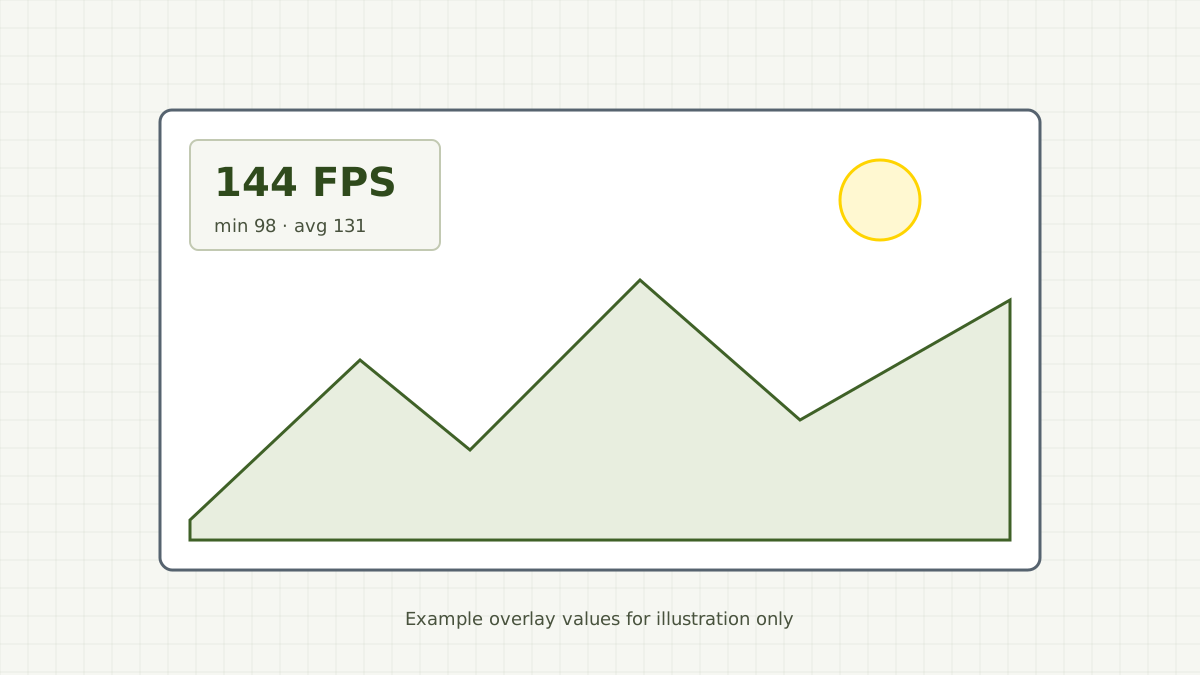
Vanilla Minecraft shows frame rate on the F3 debug screen, which covers half the view. Sodium Extra adds a small overlay instead, which is handy while you tune settings or just want to keep an eye on performance.
Turning it on
- Open Options → Video Settings.
- Go to the Extras page added by Sodium Extra.
- Find the FPS overlay option and set it to a corner instead of off.
- Apply and return to the game.
Depending on the version, related options let you show extended frame statistics or add a background behind the text for readability.
Choosing a position
Pick a corner your other mods and the vanilla HUD do not use. The top-left is often free in survival, while the top-right can clash with status effect icons. If you record videos, place it where you plan to crop or overlay a facecam.
Reading the numbers
The main figure is frames per second. When extended statistics are enabled you may also see figures like minimum and average frame rate over a short window. A steady average with a low minimum usually means short stutters, often from chunk loading, rather than generally low performance.
Testing settings with it
The overlay is most useful as a measuring tool for the rest of the mod:
- stand still in the same spot for each test,
- change one option at a time,
- wait a few seconds for the number to settle before comparing.
Our settings guide suggests an order for those tests. When you are done, you can turn the overlay off again; it is purely informational.